
XR-F Reader Tool · Windows
XR-F Card Reader Settings
Card Reader Output Format Configuration Software
Read and configure the card number output format and output modifiers of XR-F series USB HID readers directly from Windows. 13 output formats, 4 combinable modifiers, automatic read-back verification after applying — settings are stored inside the reader and survive power off and re-plugging. Built for access control, time & attendance, membership, POS, kiosk, smart locker and system integration work.
- Works on Windows 7 / 10 / 11
- Requires .NET Framework 4.8
- Portable — unzip and run
Full-feature 7-day trial on first launch · Offline activation, no internet required
13
Output formats
4
Combinable modifiers
EN / 中文
Bilingual UI, auto-remembered
7 days
Full-feature free trial
Offline
Activation, no internet
Built for field deployment
Solve the four most common reader integration problems
From format matching to after-sales troubleshooting — one tool for reader output configuration.
Card number format mismatch
- Problem: different projects require different card number formats, and the number your reader outputs does not match the business system.
- Solution: choose from 13 output formats and combine 4 modifiers to precisely match access control, attendance, membership and POS input requirements.
Input method interference
- Problem: the reader outputs as a keyboard device, and a Chinese input method turns card swipes into garbled or Chinese characters.
- Solution: the software disables the input method inside its window and prevents the swipe-triggered Enter from accidentally opening links, reducing first-swipe mistakes.
Unclear write confirmation
- Problem: after writing settings there is no way to confirm the device really outputs the new format — you can only swipe repeatedly and guess.
- Solution: after applying, the software automatically reads the settings back and verifies them; settings are written to the reader and survive power off and re-plugging.
Missing information for troubleshooting
- Problem: when something goes wrong on site, remote support gets no useful information and has to ask back and forth.
- Solution: the activity log records every operation and device response, and can be copied, saved or cleared — send the log for fast remote diagnosis.
Core Features
One tool for the complete reader configuration workflow
Designed around real field workflows: read, configure, verify, keep records.
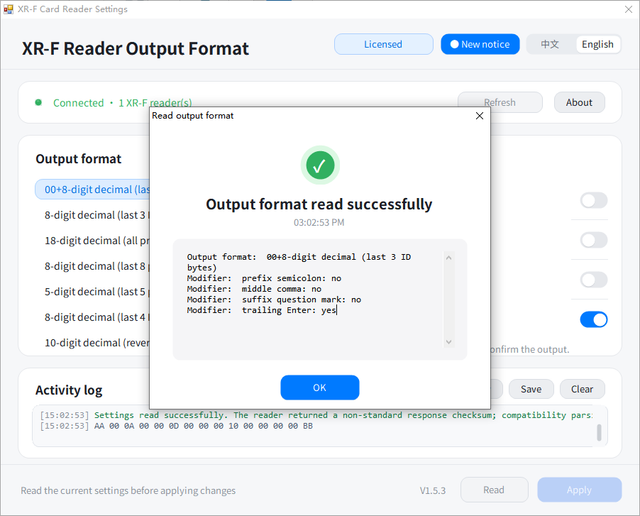
One-Click Read
Plug in the reader and read its current output format and modifiers with one click — see the current state before changing anything.
13 Output Formats
Covers mainstream card number output formats to match the input requirements of access control, attendance, membership and POS systems.
4 Combinable Modifiers
Leading semicolon, middle comma, trailing question mark and trailing Enter — combine them freely to build the target format.
Automatic Read-Back Verification
After applying, the software re-reads the device configuration and compares it, confirming the settings really took effect.
Power-Off Retention
Settings are written to the reader's internal storage and retained after power off, re-plugging or moving to another computer.
Bilingual Interface
Switch between English and Chinese with one click; the language choice is remembered automatically.
Activity Log
Every operation and device response is logged; copy, save or clear the log for on-site debugging and remote support.
Interference Protection
The input method is disabled inside the program to prevent Chinese IME interference, and swipe-triggered Enter won't accidentally open links.
Output Formats
13 card number output formats, 4 combinable modifiers
Every character of the reader’s output can be defined to match your business system.
; Leading semicolon
, Middle comma
? Trailing question mark
↵ Trailing Enter
- 01 8H10D (Wiegand 8-hex to 10-decimal)
- 02 6H10D (last 6 hex digits to 10-decimal)
- 03 10-digit decimal, forward
- 04 8-digit decimal
- 05 16-digit hexadecimal, forward
- 06 16-digit hexadecimal, reversed
- 07 8-digit hexadecimal, forward
- 08 8-digit hexadecimal, reversed
- 09 Wiegand 26 output
- 10 Wiegand 34 output
- 11 Raw card number, forward
- 12 Raw card number, reversed
- 13 Custom combined output
- Not sure which format to choose? Read the current settings first, then verify against a card number sample from your business system.
How It Works
Configure your reader in five steps
No installation, no internet, works on a standard PC.
01
Download & Extract
Download the ZIP and extract it, keeping XrfCardReader.exe and usb.dll in the same folder.
02
Plug In the Device
Connect an XR-F series reader to the computer via USB (VID FFFF / PID 0035).
03
Read Settings
Click “Read Settings” to view and save the device’s original configuration first.
04
Choose Format & Modifiers
Select the output format required by your business system and check the modifiers you need.
05
Apply & Verify
The software automatically reads back and verifies the settings, then swipe a card to confirm the output.
- First-time tip: before changing any configuration, click “Read Settings” and record or save the current format and activity log so the original configuration can be restored at any time.
Software Interface
A field tool that shows exactly what you get
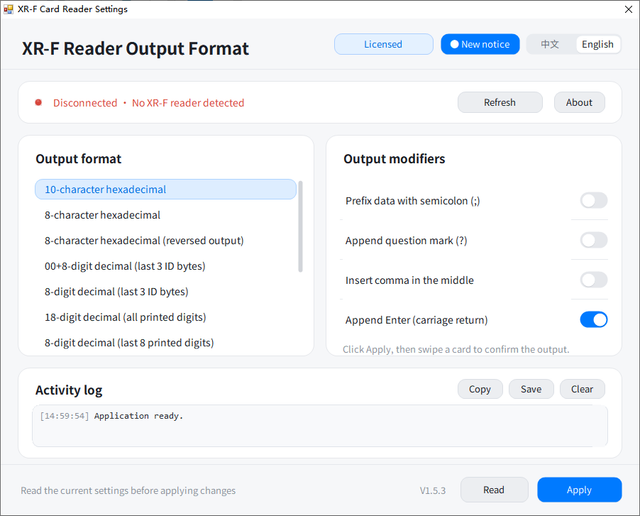
Device status, format selection, apply-and-verify and logging — all in one window.
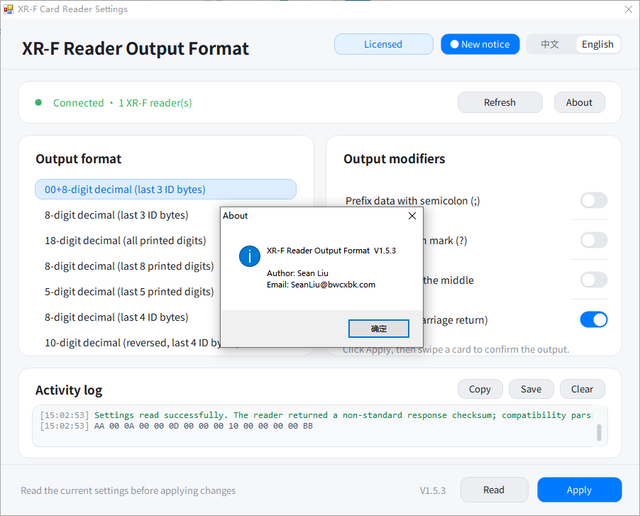
Configuration and logs at a glance
- Live device status: the XR-F reader is detected automatically — confirm the connection at a glance.
- Format and modifiers in one place: choose from 13 output formats and check the modifiers you need.
- Full activity logging: every read, apply and verification is recorded; copy or save the log for remote support.
Trial and offline licensing
- 7-day full-feature trial: use every feature from the first launch, and buy only when satisfied.
- Fully offline activation: the license code is bound to this computer's machine code — no internet, no personal data collection.
- Two import methods: paste the license code directly, or import a .lic / .txt / .dat license file.
Environment & Licensing
Easy to run, simple to activate
Windows Environment
- Supports Windows 7 / 10 / 11 with .NET Framework 4.8.
- x86 build — runs on both 32-bit and 64-bit Windows.
- Portable: extract the ZIP and double-click XrfCardReader.exe to run.
- XrfCardReader.exe must stay in the same folder as usb.dll — do not copy the EXE alone.
- Compatible devices: XR-F series USB HID readers (VID FFFF / PID 0035).
Trial & Offline Licensing
- First launch includes a 7-day full-feature trial — no registration or email required.
- Fully offline activation: no internet needed, activation status is stored on this computer.
- The license code is bound to this computer's machine code — one code per computer.
- Choose between a 1-year license and a perpetual license.
- Paste the license code directly, or import a .lic / .txt / .dat license file.
- The software does not collect or upload personal information; the machine code is generated only from local hardware.
Download & Licensing
Try it first, then choose your license
All features are open during the trial. Offline activation, one license per computer.
Free 7-Day Trial
Free / 7 days
- All features unlocked
- No registration — download and use
- Portable, no installation
- Activate any time after expiry
RECOMMENDED
1-Year License
Contact us for pricing
- One license code per computer
- Offline activation, no internet
- Bound to this computer's machine code
- Updates included during the license term
- Email support
Perpetual License
Contact us for pricing
- One license code per computer, lifetime use
- Offline activation, no internet
- Bound to this computer's machine code
- Lifetime updates for this version
- Email support
Changing computers? Copy the new machine code on the new computer and contact support to have the license reissued.
Frequently Asked Questions
It reads and configures the card number output format of XR-F series USB HID readers, including 13 card number formats and output modifiers such as semicolon, comma, question mark and Enter.
Windows 7 / 10 / 11 with .NET Framework 4.8. The program is an x86 build and runs on both 32-bit and 64-bit Windows.
No. Download the ZIP, extract it, keep XrfCardReader.exe and usb.dll in the same folder, and double-click XrfCardReader.exe to run.
The program needs the bundled 32-bit usb.dll to communicate with the USB HID reader. Without the DLL it cannot connect to the device.
The first launch gives you 7 days of full functionality. After expiry, activate with a license code or license file — both 1-year and perpetual licenses are available.
No. The software uses offline activation. The license code is issued against this computer’s machine code, and the activation status is stored locally.
No. One license code is bound to one computer. If you change computers, copy the new machine code on the new computer and have a new license issued.
Paste the entire license code into the license field and click Activate, or import the .lic, .txt or .dat license file you received.
Click “Read Settings” first, record or save the current format and activity log, then apply the new format required by your business system so the original configuration can be restored.
Confirm the result window shows success, then unplug and re-plug the reader and swipe a card again. If it still fails, save the activity log and contact technical support.
The new version disables the input method inside the program. If Chinese characters still appear, switch the system input method to English or half-width before swiping, and close any software that may intercept keyboard input.
Check the USB connection and connect directly to the computer rather than through a hub; click “Refresh device status” and confirm the device appears as an HID device in Device Manager. If necessary, run the program as administrator.
No. Once applied successfully, the settings are written to the reader’s internal storage and are retained after power off or re-plugging.
The software uses offline activation, requires no internet, and does not collect or upload personal information. The machine code is generated only from local hardware characteristics.
Set your reader to the exact format your system needs
7-day full-feature trial, portable, offline activation. Download, unzip, plug in the reader and start.